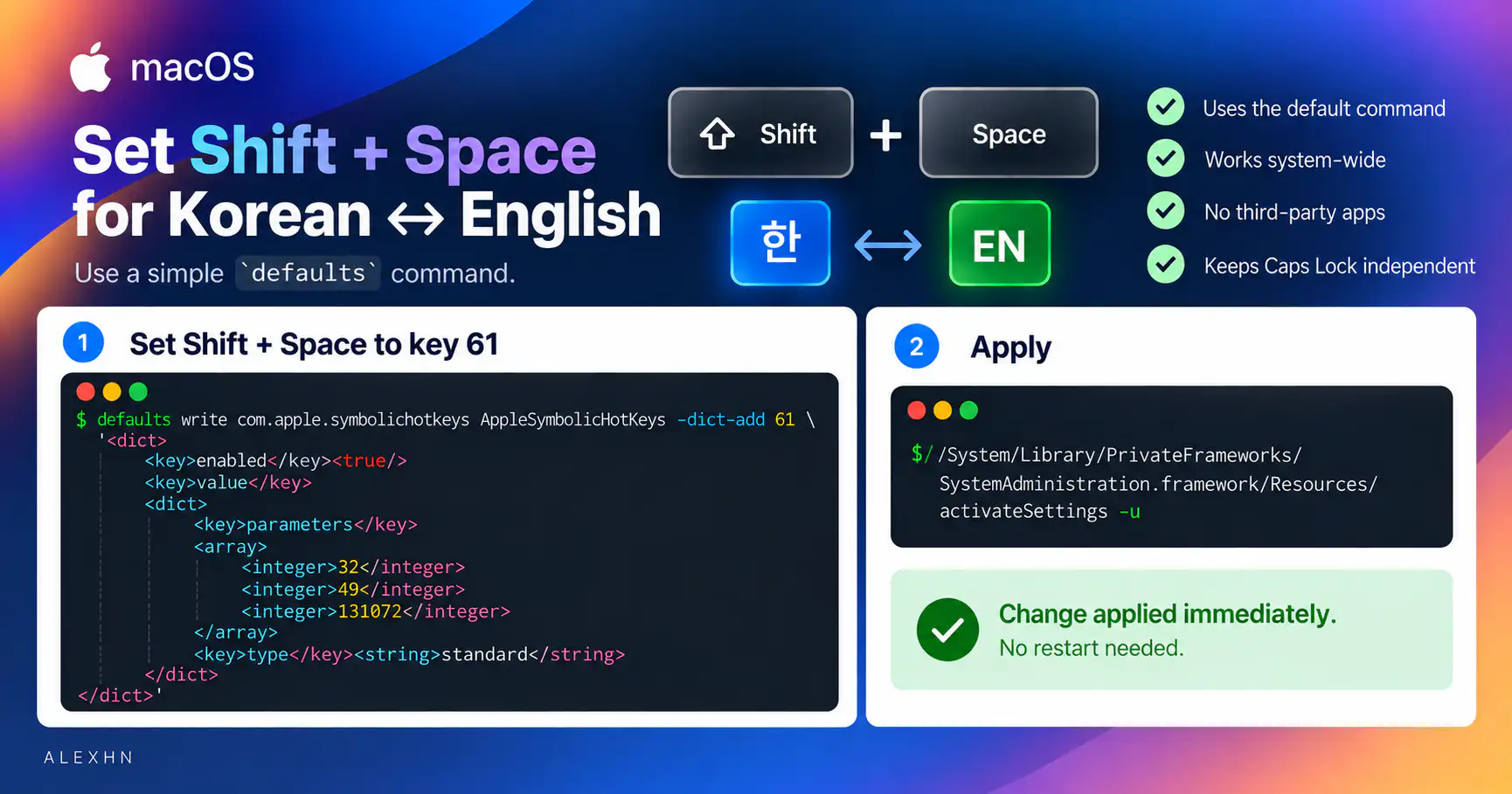
Why Are ONLYOFFICE PDFs So Large? Font Subsetting Cut Mine by 73%
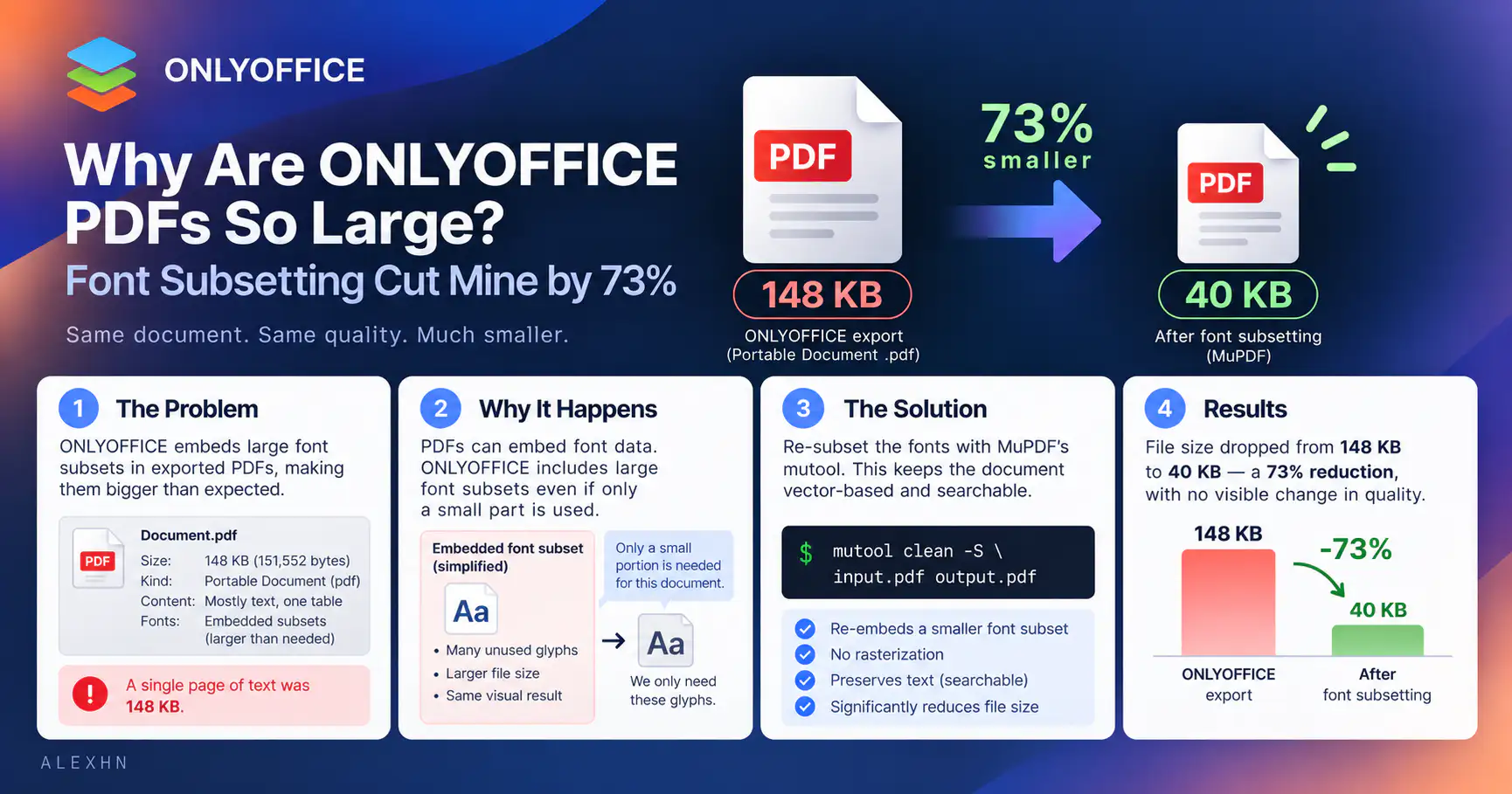
I recently tried using ONLYOFFICE Desktop(9.4.0) on macOS for some company documents. I created a one-page Korean document mostly text, one small table, and no images and noticed that the exported PDF was 179 KB. I later realized that I had selected ONLYOFFICE Form Document (.pdf) rather than the conventional Portable Document (.pdf) export which was somewhat better at 148 KB, but still much larger than I expected for this document. It's obviously not a large file, but for a single page of mostly text, it seemed unnecessarily large. I expected something below 50 KB.
Then, I tried Print → Save as PDF on macOS, thinking it might produce a smaller or cleaner PDF but It got worse: 394 KB.
So I spent some time figuring out what was actually inside these PDFs and I finally reduced it to 40 KB with no image downsampling or rasterization, while keeping the Korean text searchable and selectable.
The solution first
The main problem was oversized embedded font subsets. Re-subsetting them with MuPDF reduced my 148 KB ONLYOFFICE PDF to 40 KB without rasterizing the document.
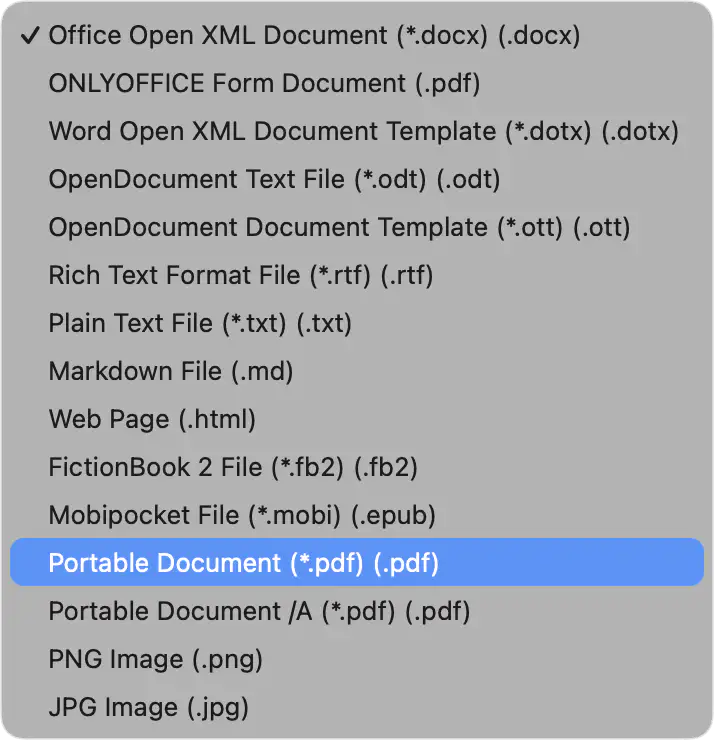
If you’re seeing the same problem with ONLYOFFICE, here’s what worked for me. Use File → Save As → Portable Document (*.pdf). Don’t confuse it with ONLYOFFICE Form Document (*.pdf) near the top of the format list. Also, don’t use Print → Save as PDF for this purpose.
Then install MuPDF on macOS
brew install mupdf-tools
And run
mutool clean -gggg -S -z -f -t -Z -e 100 input.pdf output.pdf
The options look a little intimidating, but they’re mostly asking MuPDF to clean and recompress the PDF aggressively without intentionally reducing visual quality.
-gggg |
Maximum garbage collection: removes unused objects and merges duplicates where possible |
|---|---|
-S |
Subsets embedded fonts — the important one for my case |
-z |
Compresses uncompressed PDF streams |
-f |
Compresses font streams |
-t |
Compresses page content streams |
-Z |
Uses object streams to reduce PDF structural overhead |
-e 100 |
Uses maximum compression effort |
My 148 KB Portable Document became 40 KB, a reduction of about 73%.
For my specific document, -S made the biggest difference because most of the unnecessary size came from embedded font data. The other options clean up and compress the PDF structure around it. None of these options intentionally downsample images or rasterize the page, which was important for my use case. I also created Quick Action called Shrink PDF for repeated use.
If all you wanted was the fix, you can probably stop here. The rest is what I found while trying to understand why this happened.
What was making the ONLYOFFICE PDF so large?
My document used Gothic A1, a Korean font. When I first inspected the PDF, I found three embedded font subsets: Gothic A1, Gothic A1 Bold and Noto Sans Canadian Aboriginal. The Noto font appears to have been automatically selected as a fallback somewhere in the document. More interesting was how much space the fonts consumed:
| Embedded font | Size |
|---|---|
| Gothic A1 Regular | ~74 KB |
| Gothic A1 Bold | ~58 KB |
| Noto fallback | ~3 KB |
| Total | ~135 KB |
That’s about 135 KB of font data inside the 179 KB ONLYOFFICE Form Document PDF that I originally investigated. At first I thought this might simply be the price of using a Korean font because Korean fonts contain many glyphs, including Hangul and various symbols, so a larger embedded font didn’t seem unreasonable. But the fonts were already marked as subsets. ONLYOFFICE wasn’t embedding the entire Gothic A1 font. It was just producing relatively large subsets.
For PDF inspection, I used Poppler (brew install poppler), particularly pdffonts and pdfimages -list.
Print to PDF made things much worse
The second method I tried was File → Print → Save as PDF, using the macOS print path. It produced a 394 KB PDF, considerably larger than the original 179 KB file. When I inspected this file, the reason became obvious. The entire A4 page had been rendered into an RGB bitmap of approximately 2480 × 3504 pixels. That’s roughly A4 at 300 DPI.
That also explains why running the same mutool command on the 394 KB PDF didn’t make it smaller. There were no embedded fonts left to subset. The page was already an image. And although the PDF looked the same on screen, the text was no longer searchable or selectable as normal PDF text. For this workflow, Save As PDF is clearly preferable to Print → Save as PDF.
Google Docs confirmed that 179 KB wasn’t necessary
Since I had used Google Docs for years without noticing this kind of PDF size issue, I imported the same DOCX into Google Docs and downloaded it as PDF. The resulting PDF was 55 KB. Interestingly, the Google PDF contained several embedded font subsets too.
Interestingly, the Google PDF contained several embedded font subsets too: GothicA1-Bold, GothicA1-Regular, Arial, and NotoSansCanadianAboriginal.
So having Korean fonts or even having several embedded fonts wasn’t inherently responsible for the large file. Google Docs produced essentially the same document at about 55 KB despite containing four font subsets. Interestingly, mutool reduced the Google Docs version further, from about 55 KB to 42 KB. So Google Docs was already much more efficient than ONLYOFFICE out of the box, but MuPDF could still optimize it.
| PDF generation method | Size |
|---|---|
| macOS Print → PDF | 394 KB |
| ONLYOFFICE Form Document | 179 KB |
| ONLYOFFICE Portable Document | 148 KB |
| ONLYOFFICE Portable + MuPDF | 40 KB |
| Google Docs | 55 KB |
| Google Docs + MuPDF | 42 KB |
The same kind of document can therefore differ by almost an order of magnitude depending on how the PDF generator handles fonts and page content.
Other ONLYOFFICE PDF formats
I later noticed that ONLYOFFICE offers several PDF-related export formats. The conventional Portable Document was actually smaller than the Form Document I had initially selected.
| ONLYOFFICE export format | Size |
|---|---|
| Form Document | ~179 KB |
| PDF/A | ~151 KB |
| Portable Document | ~148 KB |
Interestingly, after running mutool, all three ended up around 40–43 KB.
What does mutool actually fix?
mutool comes with MuPDF, a PDF rendering and processing engine. For this problem, the important part is that MuPDF can take the fonts already embedded in the PDF and create much smaller subsets containing only what’s actually required by the document. The command I’m using also performs structural cleanup, garbage collection and stream compression:
mutool clean -gggg -S -z -f -t -Z -e 100 input.pdf output.pdf
I also verified the optimized result rather than relying only on visual inspection. I extracted and compared the text, then rendered both PDFs at the same resolution and compared the resulting images pixel by pixel. For this particular document, the extracted text was identical and the rendered images had zero changed pixels.
This is different from the usual approach taken by many “PDF compressor” tools. Those often get most of their savings by reducing image resolution, recompressing JPEG images, or lowering image quality.
That wasn’t useful in my case because there were no images to compress. The excess data was mostly embedded fonts. I also tested Ghostscript, which is used behind many PDF compression tools. It reduced the original 179 KB file to around 107 KB. That’s useful, but MuPDF’s font subsetting was much more effective for this particular document:
| Method | Size |
|---|---|
| ONLYOFFICE Form Document | 179 KB |
| + Ghostscript | 107 KB |
| + MuPDF | 40 KB |
| Google Docs | 55 KB |
Making it a Finder Quick Action
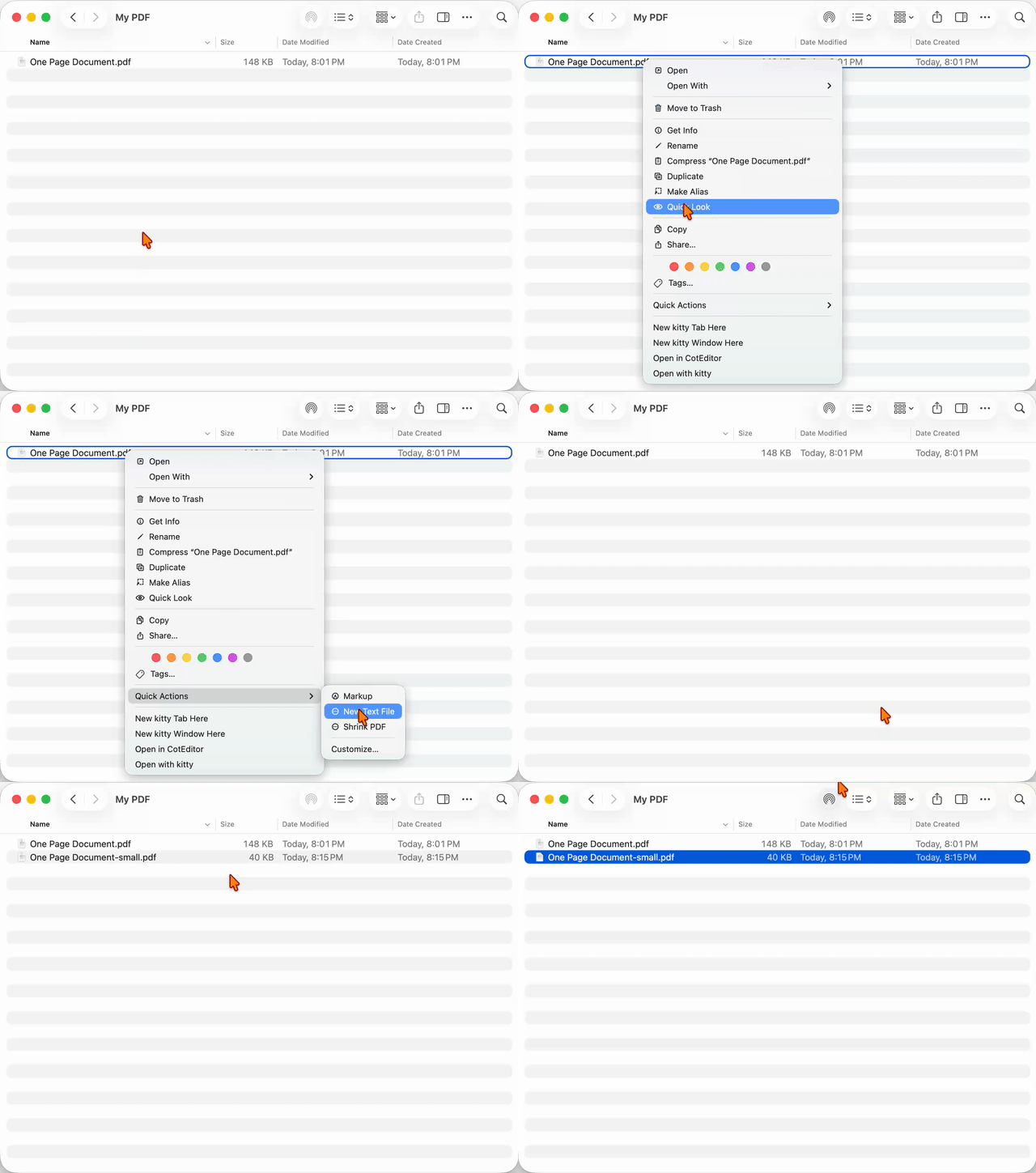
I needed to make it easy for repeated use whenever I finish a document, so I added it as a macOS Finder Quick Action using Automator's Run Shell Script action.
for pdf in "$@"; do
    dir="$(dirname "$pdf")"
    name="$(basename "$pdf" .pdf)"
    output="$dir/${name}-small.pdf"

    /opt/homebrew/bin/mutool clean -gggg -S -z -f -t -Z -e 100 "$pdf" "$output"
done
Now my workflow is simply Save As → Portable Document → right-click in Finder → Quick Actions → Shrink PDF. One caveat: if you're using cryptographic PDF signatures, optimize the PDF before signing it.
Final measurements
Here are the final measurements for this particular text-based document:
| Generation method | Original | After mutool |
|---|---|---|
| macOS Print → PDF | ~394 KB | ~394 KB |
| ONLYOFFICE Form Document | ~179 KB | ~40 KB |
| ONLYOFFICE PDF/A | ~151 KB | ~43 KB |
| ONLYOFFICE Portable Document | ~148 KB | ~40 KB |
| Google Docs | ~55 KB | ~42 KB |
The most interesting result to me is that all four text-based PDFs converged to roughly 40–43 KB after MuPDF optimization, despite starting anywhere from 55 KB to 179 KB. The macOS Print version is the exception because the page had already been rasterized into an image.
There are plenty of PDF size reducers - Clop, PDF Squeezer, Ghostscript, and others - and many PDF compression workflows focus heavily on image optimization. That wasn't the problem here. In my document, the biggest opportunity was font subsetting.